

Compatible with Android 9 and later versions. Steps may slightly differ depending on the version of your operating system.
- Check out More resources
Simplify your experience with Outlook and Teams by following our step-by-step instructions to install and register your device using an Android v+9 device.
Compatible with Android 9 and later versions. Steps may slightly differ depending on the version of your operating system.
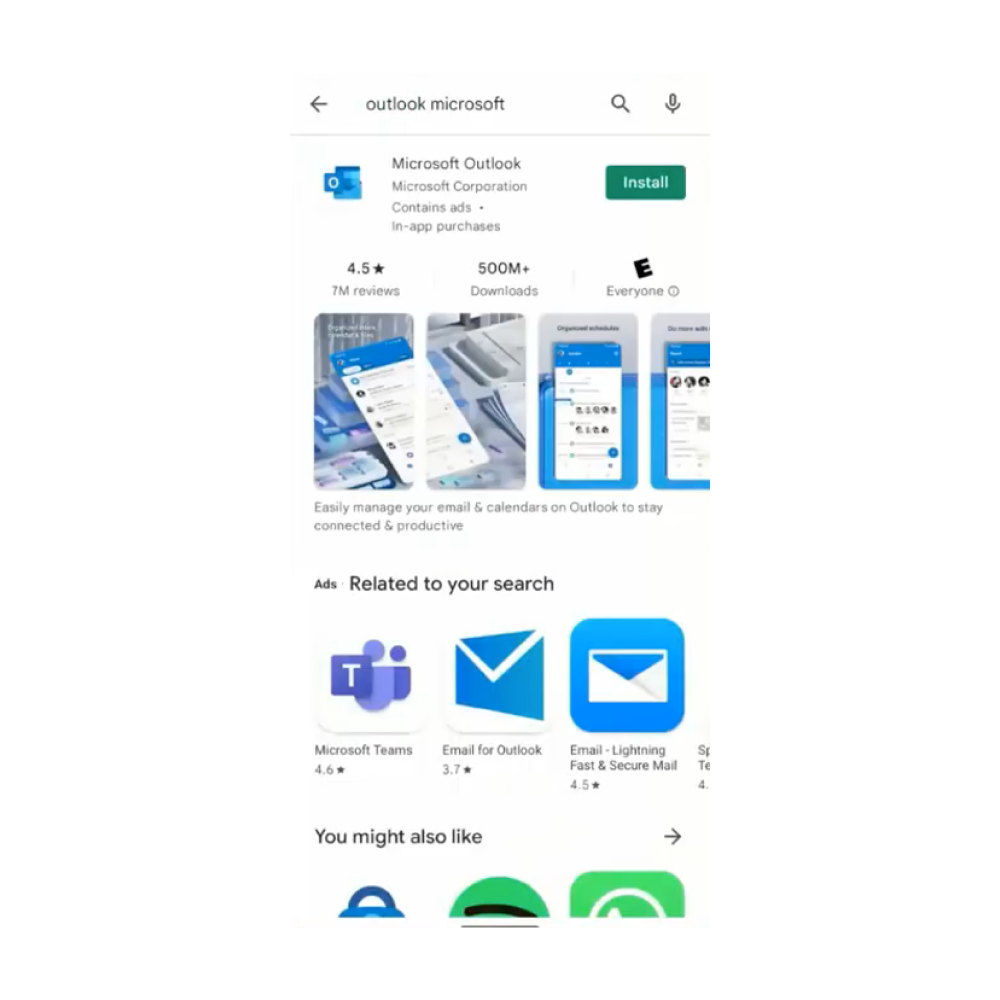
1. From the Play store, install and open one of the Microsoft Apps (Outlook, MS Teams, etc.). Note that if the App was already open, you may need to close and open it. In certain situations, uninstalling and reinstalling the App may be necessary.
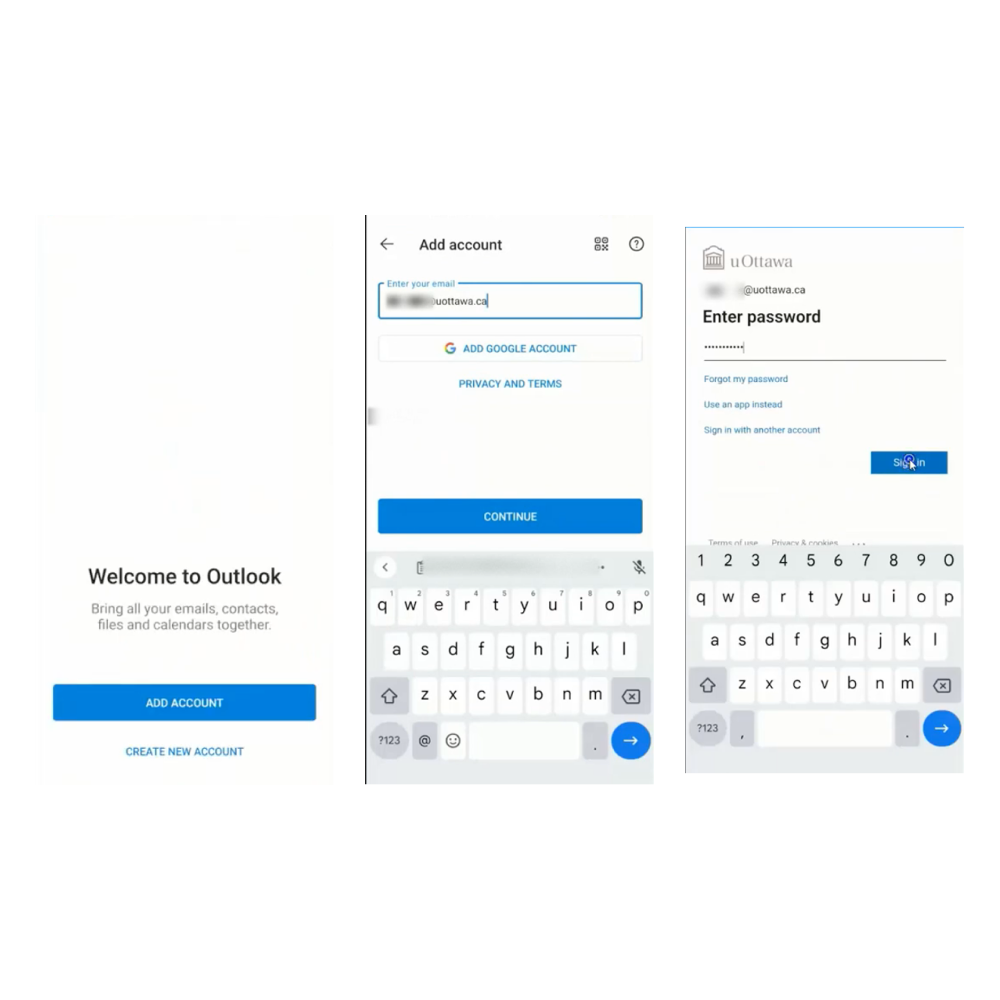
2. Login or add your @uottawa.ca account
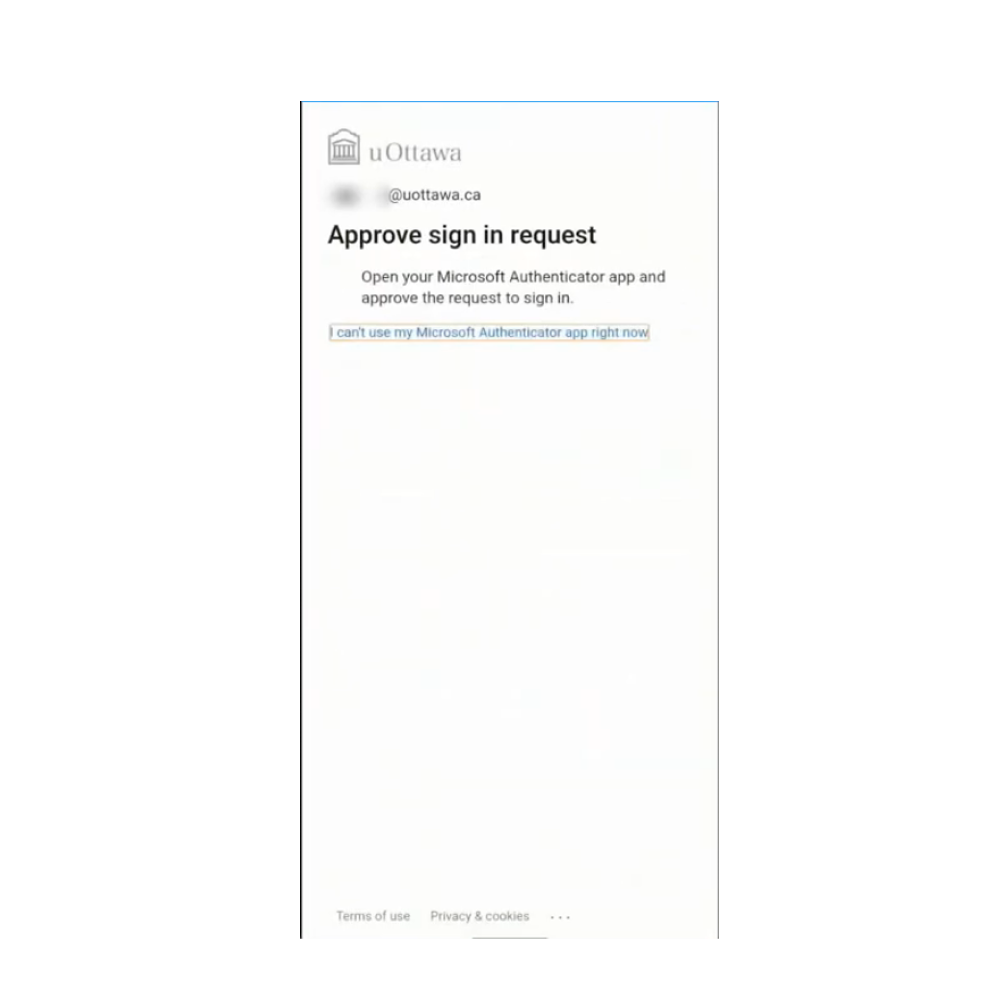
3. You will need to use MFA to authenticate
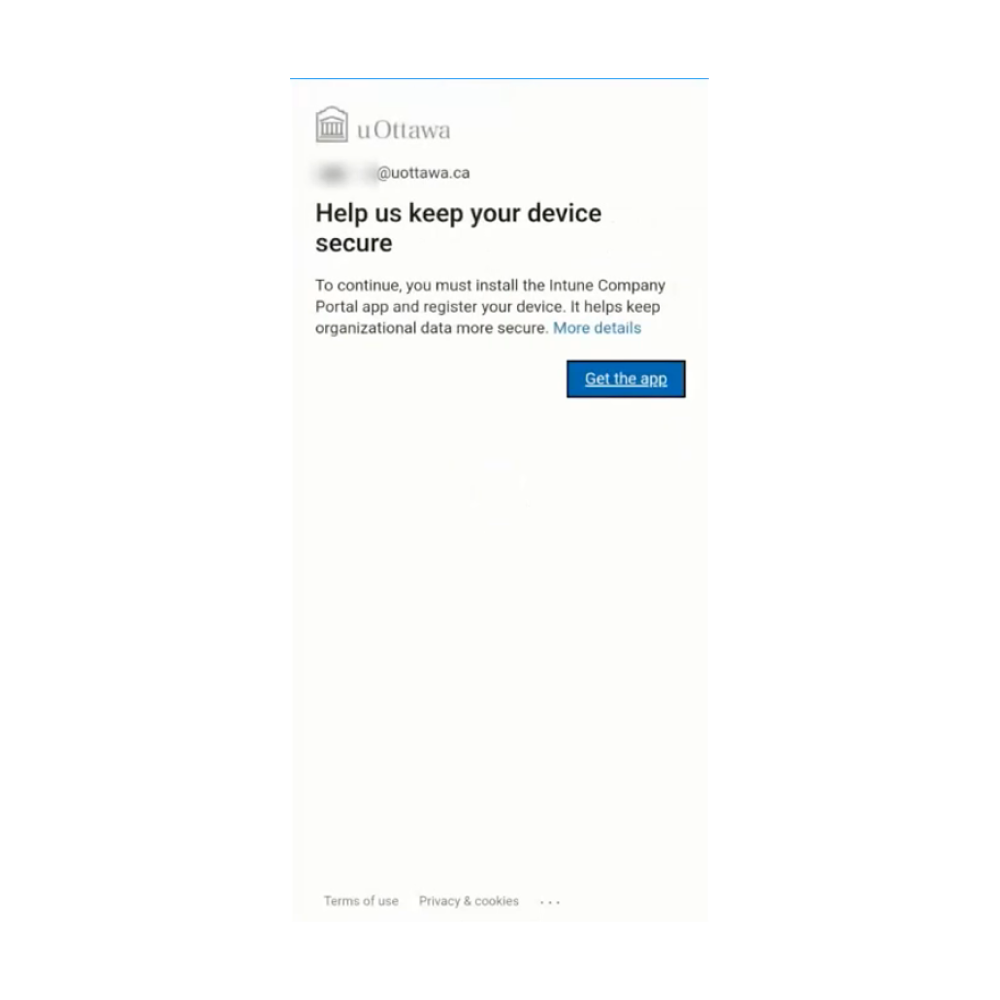
4. You will be prompted to install “Intune Company Portal” app, click on “Get the app”
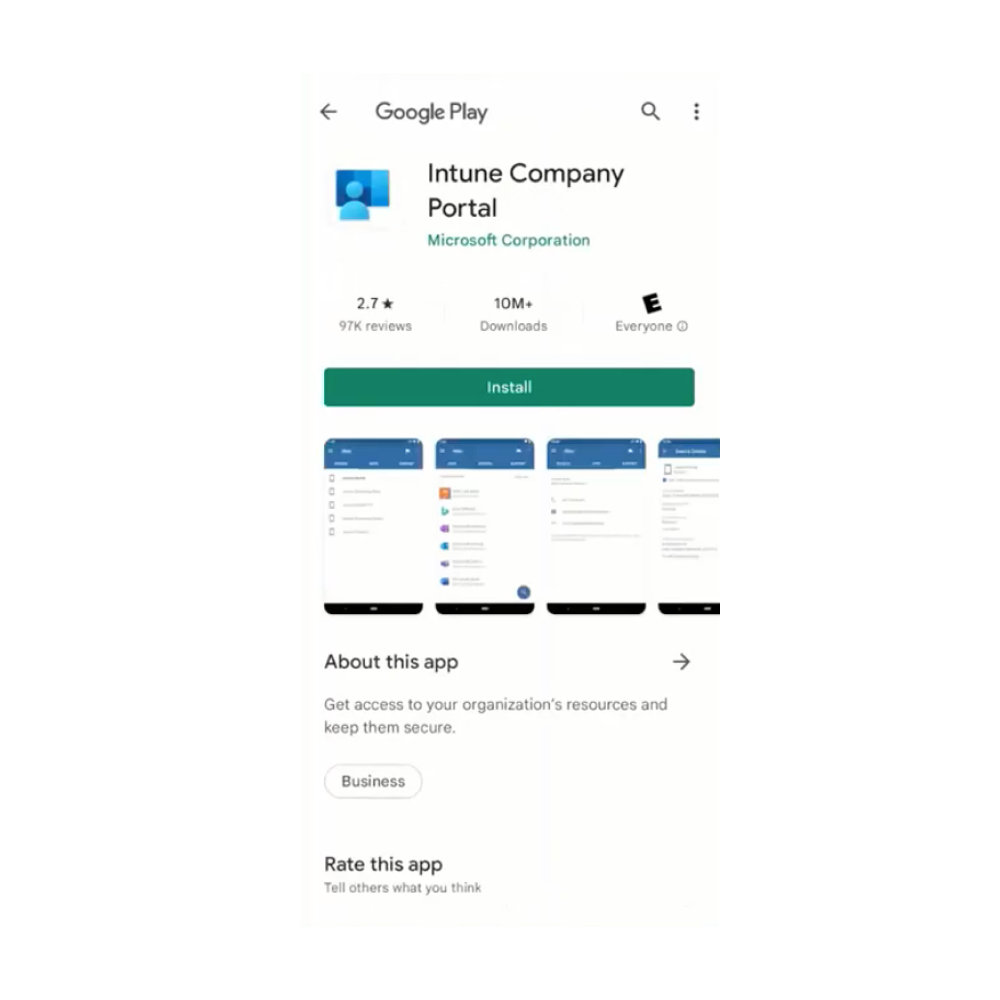
5. Click “Install”
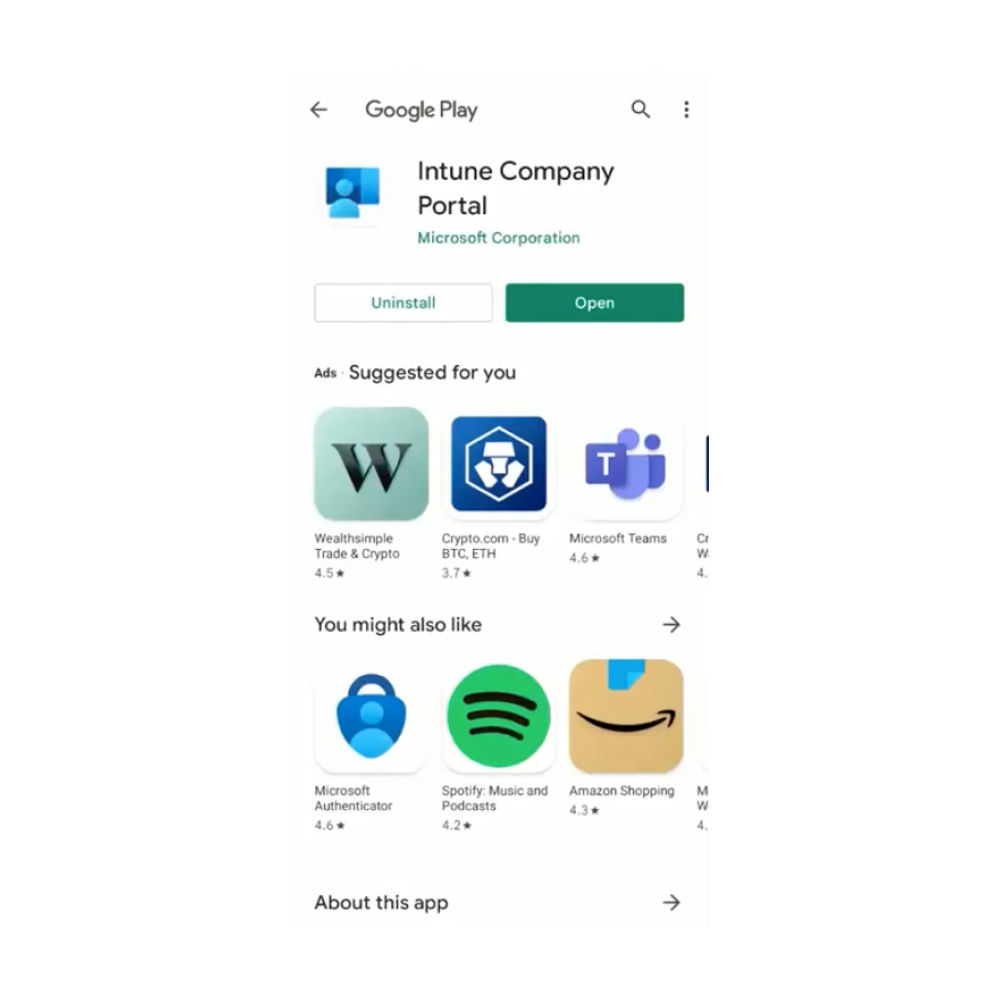
6. After the installation is completed, click “Open”
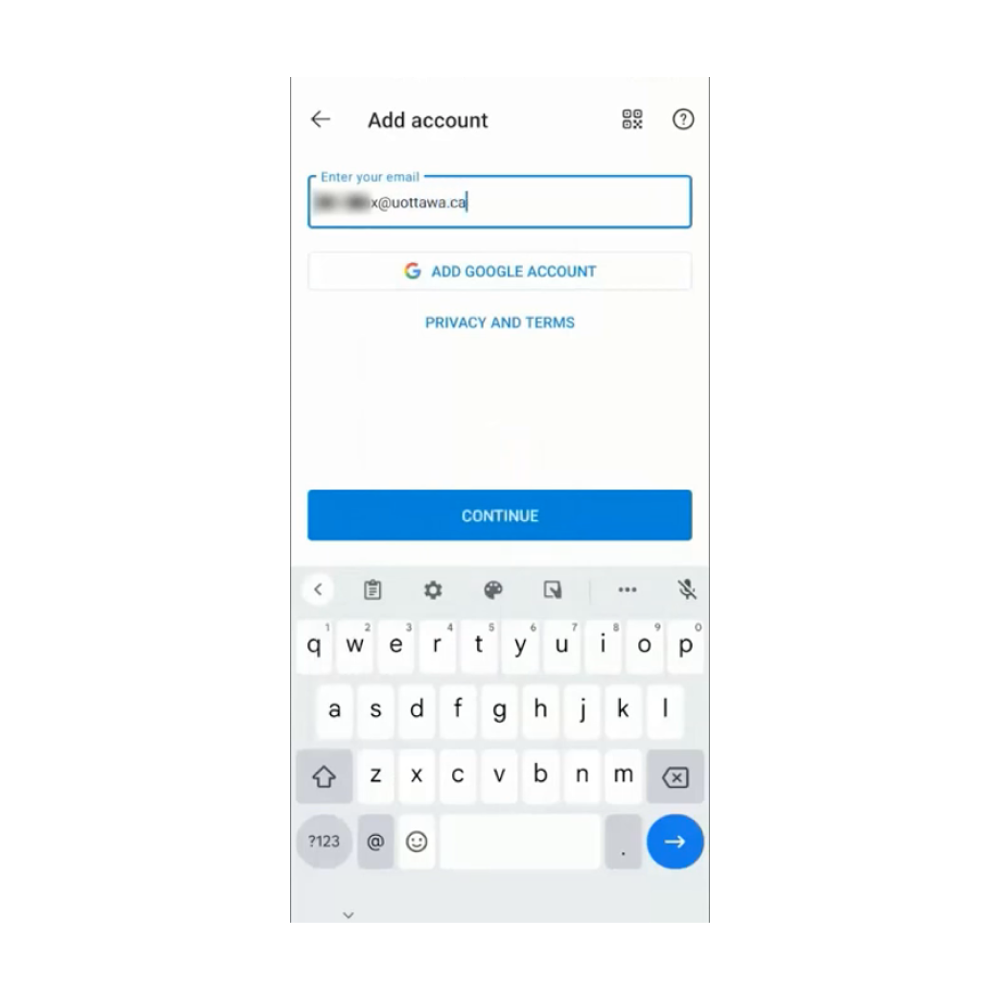
7. Login with your @uottawa.ca account
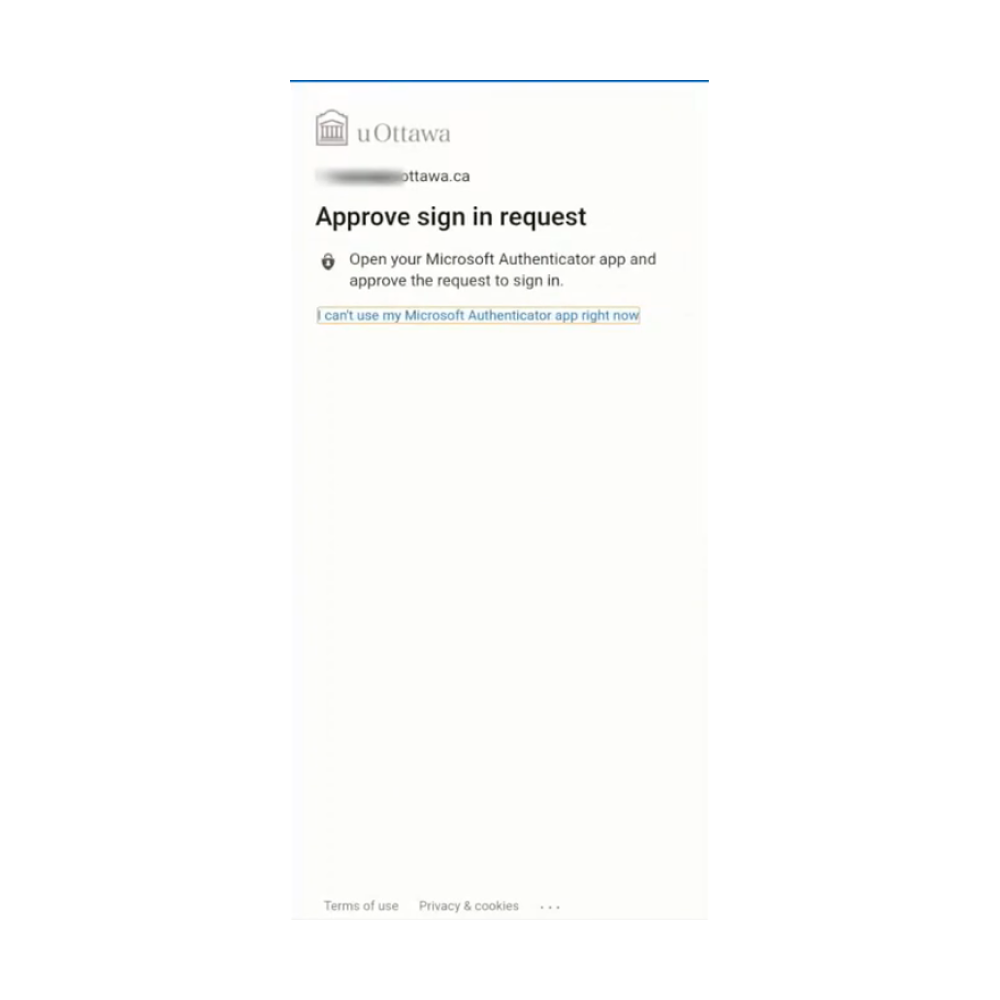
8. You will need to use MFA to authenticate.
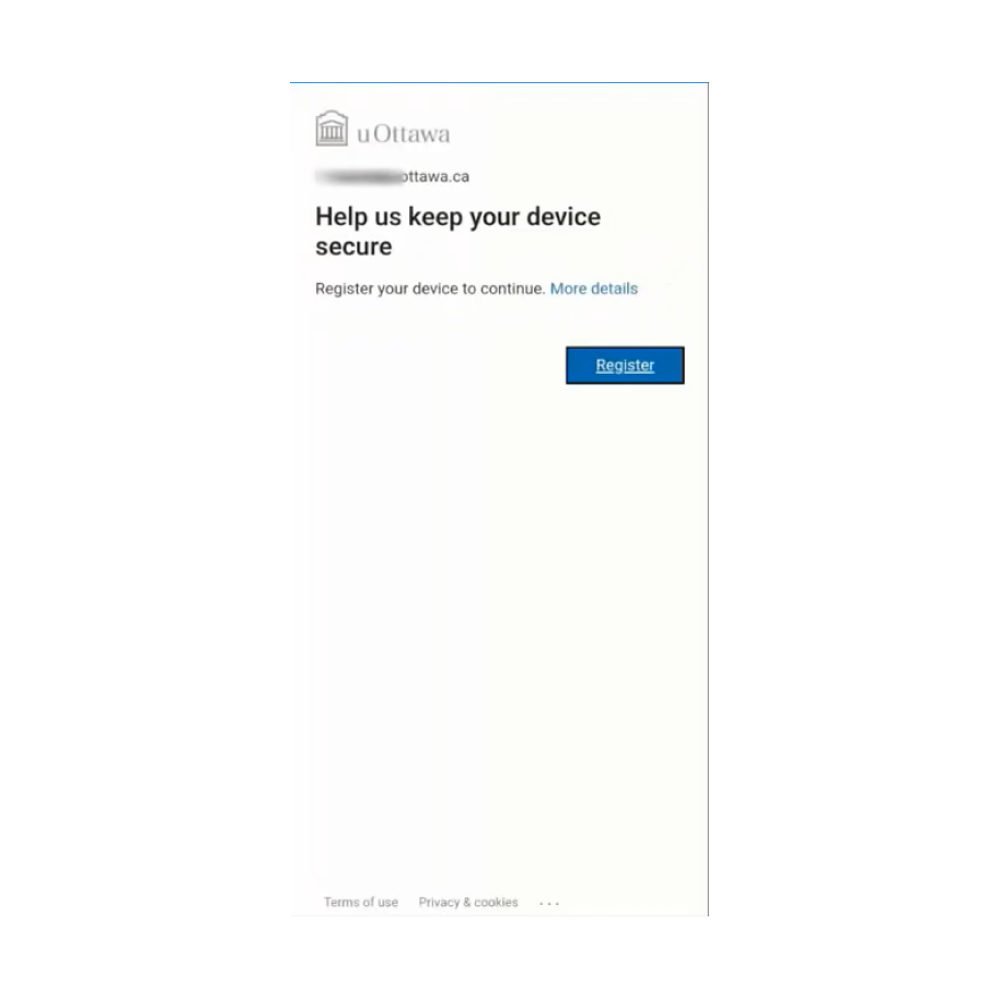
9. Once logged-in, you will be prompted to register
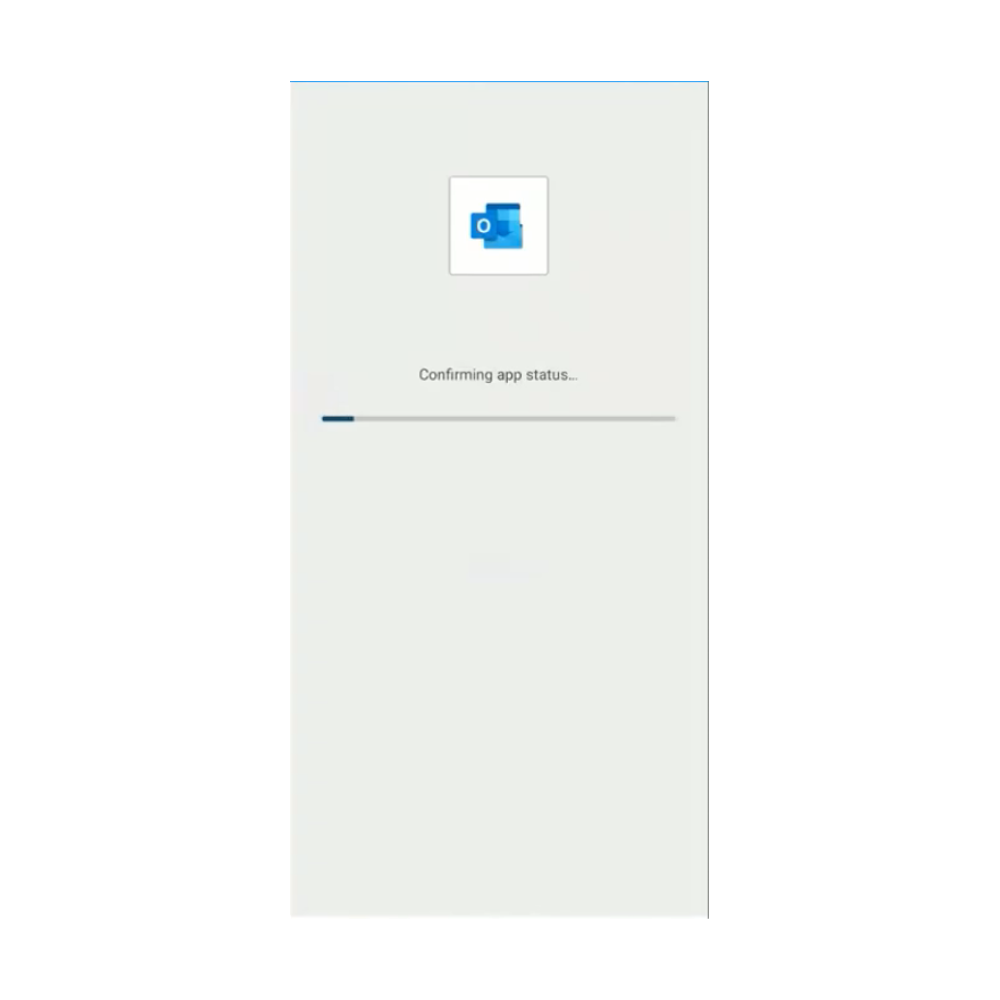
10. Wait for the registration to complete. This may take a few minutes.
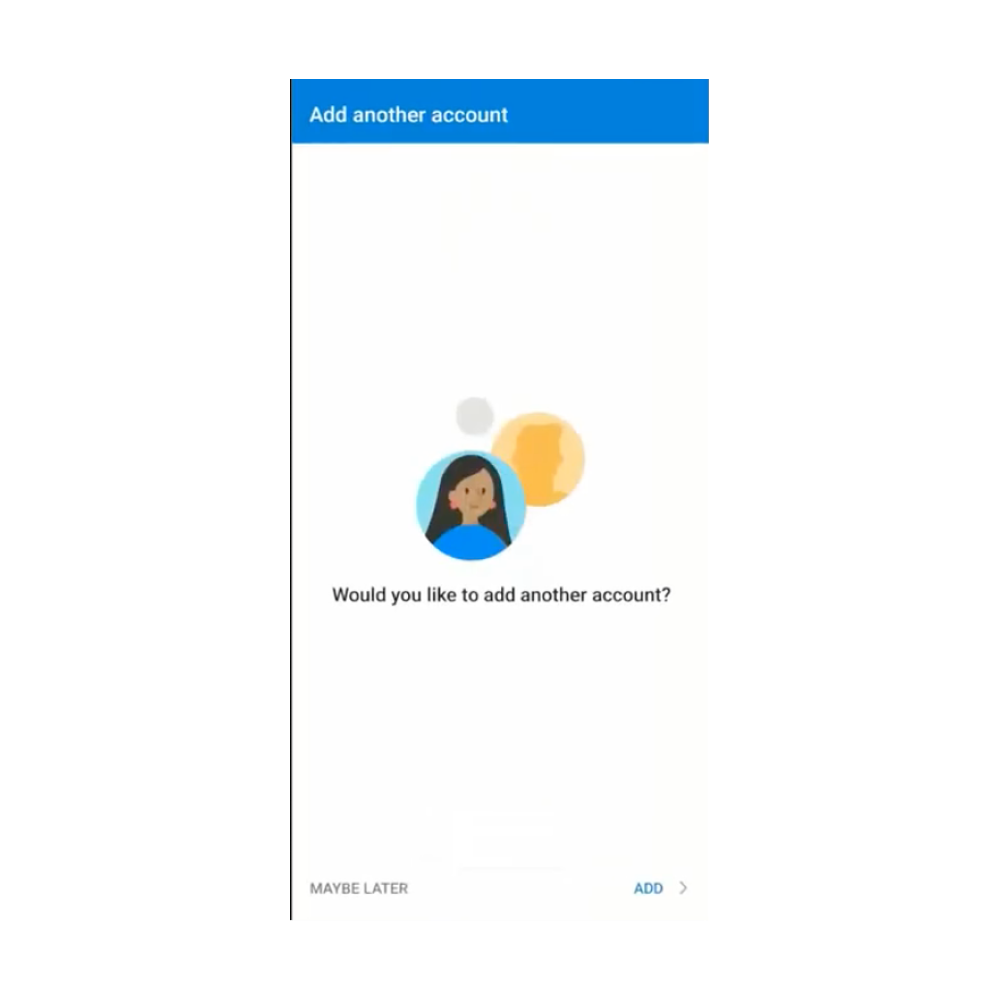
11. When prompted to add another account, click “Maybe Later”
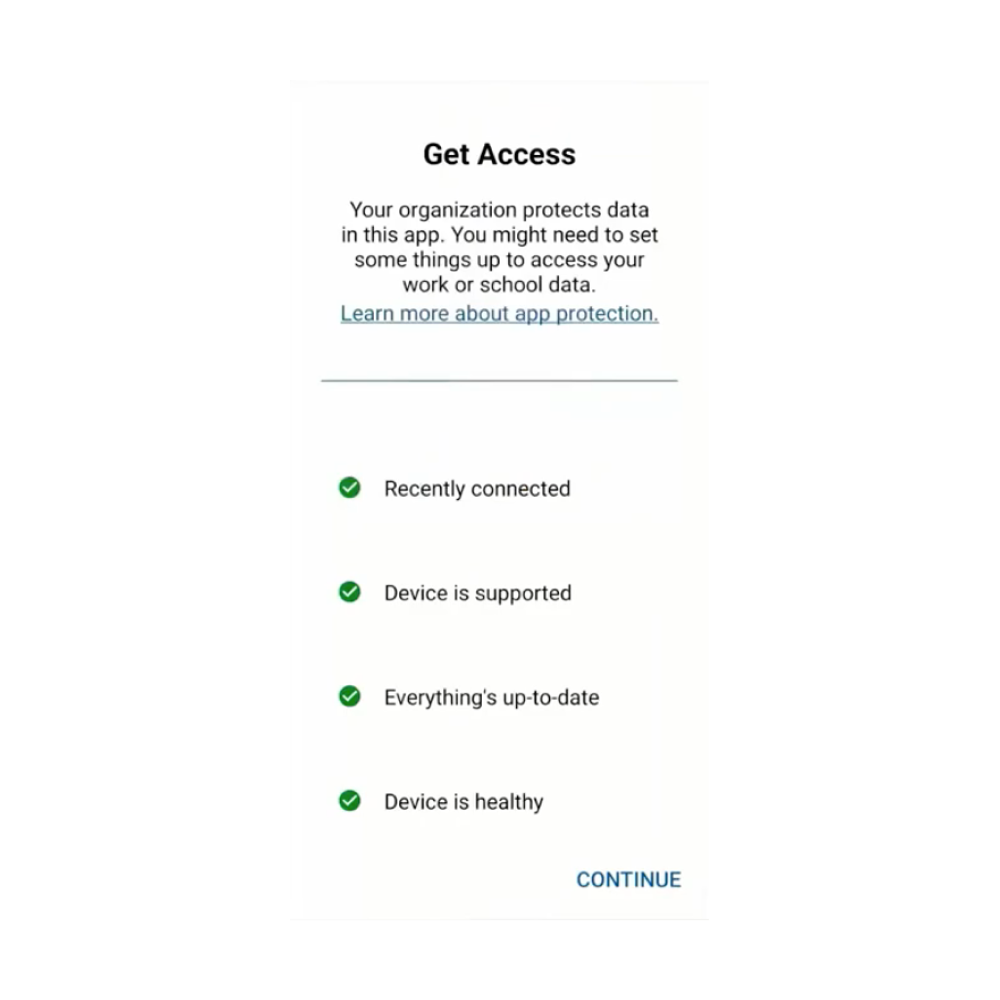
12. When the registration is completed, click “Continue”
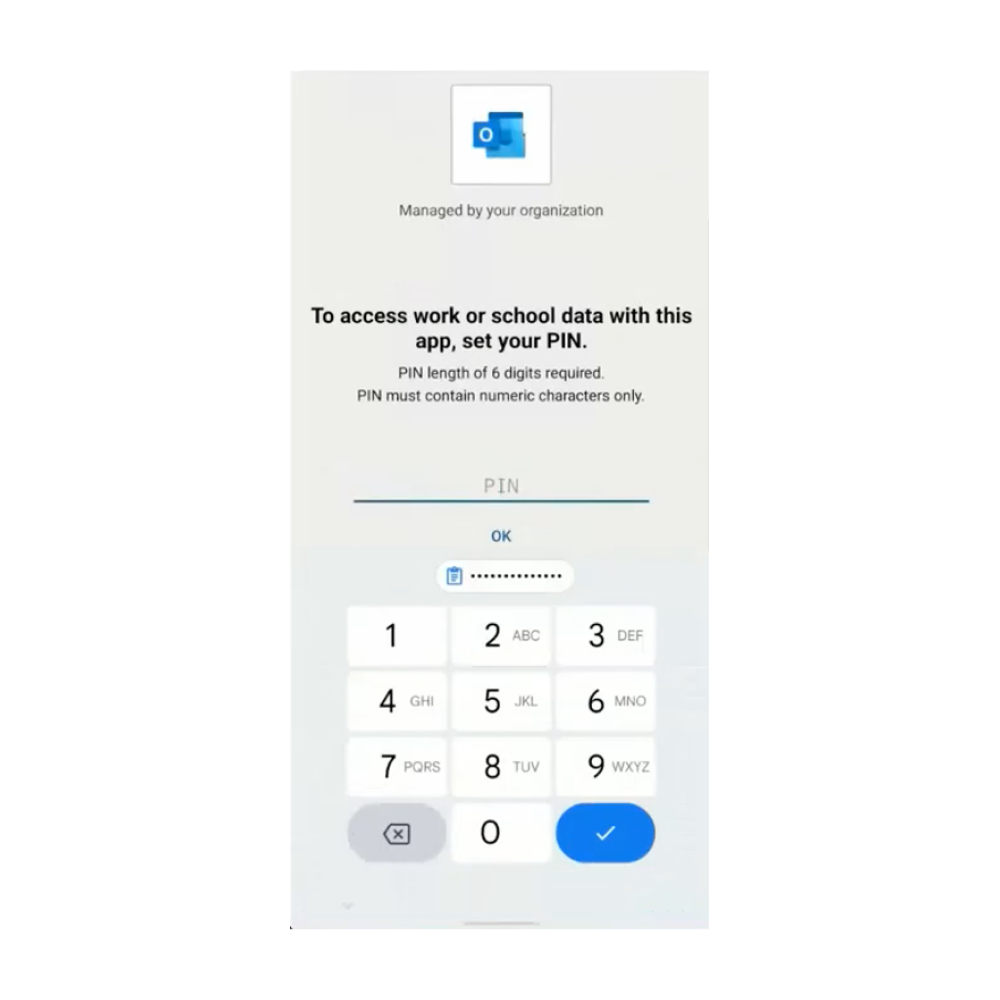
13. When prompted, you will set a 6 digits pin. This is not your current device pin but you can use the same one.
14. Your registration is now completed and you can start using your Microsoft Apps.
It is recommended to wait a few minutes after the setup process is completed and restart your Microsoft Apps (Outlook, Teams, etc.).