An emergency is no time for guesswork.

branded are you ready graphic of pixilated person with green overlay and chopped text
Make sure you can receive official emergency alerts from uOttawa on your computer and phone.

Follow these four steps to set up alerts.

Alertus logo with green checkmark

1. Install Alertus on your computer.

Alertus displays alerts directly on your computer screen if there’s an emergency.

Make sure the Alertus icon appears on your taskbar. If it’s not there, contact IT for assistance

SecurUO app icon

2. Download SecurUO on your phone.

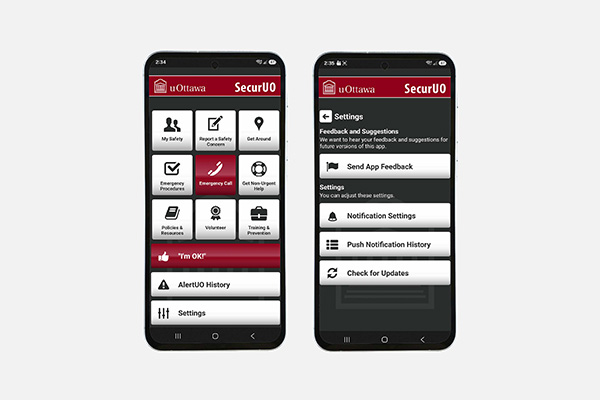
SecurUO is uOttawa’s safety app. It sends emergency alerts directly to your phone.

example of securUO app on 2 phone screens

3. Turn on notifications for SecurUO.

Enable notifications so you can receive alerts when an emergency happens. To do this, check your device settings. 

Cloud with down arrow icon

4. Prevent your device from offloading SecurUO.

Your device can limit SecurUO’s functions after a period of inactivity.

  • Android: Disable auto sleeping for SecurUO. The name and location of this setting might vary depending on your device.
  • iPhone: Open the app regularly to keep it active.
  • Other devices: Check the settings or instructions for your device to prevent it from offloading SecurUO.

Need help or another way to receive alerts?

Contact the Emergency Management team to get assistance and find the solution that works best for you.

What happens if there’s an emergency?

When an alert is triggered, the University shares official information and guidance through a variety of channels, depending on the situation.

  1. Stop and read these messages in full.
  2. Follow the instructions given immediately.
  3. Trust official sources, not rumours. 
university alert appearing on a laptop

Next test of the alert system: September 24, 2026

Between 11 a.m. and noon, we’ll be testing our emergency alert system via SecurUO, the mobile app, and Alertus, the computer alert system.